

CoSchedule vs ClickUp – How I Use Both
A lot of the time when we chat about these comparisons, it is about helping you choose one or the other. CoSchedule vs ClickUp, for example. But in this situation, I actually use both so I thought I would go through some of the big benefits of each tool and show you how I use them to help organise my business.
As an Amazon Associate I earn from qualifying purchases and sometimes recommend products from other sellers at no extra cost you. For more details see my disclosure policy and privacy policy.
What is ClickUp?
ClickUp is a project management tool that works on a hierarchy system to organise tasks into lists then folders and in workspaces. This makes it perfect to organise different areas of your business and be able to see specific views or the big overview.

Some people say that ClickUp is similar to Asana but to me, it incorporates the best of Asana and Trello. It has the list and calendar views, you can create Kanban-style boards and then there are additional views, including some for different project management styles in the upgraded version such as Sprints and Gantt charts.
ClickUp has a great free option and you can upgrade to add more features. You can add users to the tool and they can be added to anything from a full workspace right down to a specific list. You can then allocate them tasks or even sub-tasks that they can view on their own ClickUp view.
What do I use it for?
For me, I use ClickUp for all jobs that aren’t content creation. That means it is the first place that I go to in the morning and where I clear all tasks before moving to my content creation tool, CoSchedule.
Client work
The first thing I like to do after checking emails and catching up on any admin jobs is any client work. I like to do this early in the morning when my brain is fresh! With ClickUp, I have a dedicated client workspace with folders for the type of work and lists for each client.
When I start, I view only the Client Work workspace. Here I have a daily, weekly and monthly calendar. I use the daily most often so I only see what needs to be done today. The weekly and monthly views give me a bigger picture of what’s to do across the week or month.
Regular jobs
If there’s one thing I learned about content marketing, it is that there are plenty of regular jobs you need to do! These can range from updating plugins, planning content or checking on social media profiles.
I have various workspaces for my different blogs because I’m mad and have a few. But you could also organise this into tasks such as Admin, Content Marketing, Outreach, Social Media and so on.
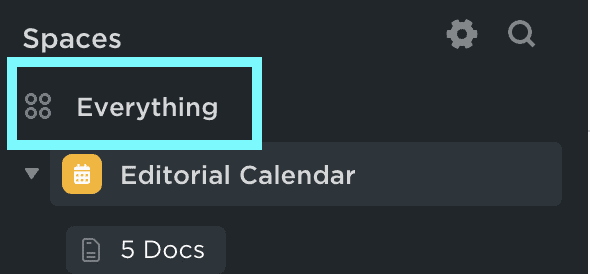
Once client work is done, I use either the ‘Everything’ area on a daily view or the newer Home option to see all the tasks left to do. I’m favouring the new home page as you can just tick as you go and it has a calendar along one side that can be synced with Google Calendar or other favourite apps.
Content Updating
As well as those regular jobs, I have a content database for each blog in ClickUp and an automation that reminds me to update each post periodically. For this blog, it is either once a year or at a specific time such as around November/December for trends articles. For my food blog, it can be every 6 months or seasonally.
It takes a little to set this up but once it is running and you space out the due dates, you can ensure you are regularly updating content. Google loves it for SEO and you can look to see what’s working with traffic to enhance the post – or just make sure the information is still accurate.
Once all of these regular and content updating jobs are done, I move on to CoSchedule.
What is CoSchedule?
CoSchedule describes itself as a Content Marketing Calendar and that’s very accurate for me. While it has been around in different forms for a long time, the current calendar system works great for teams but is also ideal for people working alone like me.
Whereas ClickUp is a workspace/folder/list style setup, CoSchedule works on projects. These can be a whole range of different things including blog posts, email newsletters and social campaigns. If you connect the WordPress plugin, it can even create draft posts on your site.

Within each project, there are different things you can do. These include creating text docs or connecting with Google Drive and opening a Google Doc or Sheet. You can create social campaigns for the project and also have a whole series of tasks for it.
Plus there’s templates for boh tasks and for social campaigns. These are huge time savers for me. I have a template for the tasks I do for a new post that I simply add to each project and I don’t need to remember to set everything up for what needs doing.
What do I use it for?
I use CoSchedule to handle content creation for blog posts and newsletters, other types of emails and potentially for things like guest posts or video marketing when I start doing it.
I use the coloured tags to show which blog the project belongs to and then use task templates to ensure everything is done on time. It also allows me a monthly view of what content I’m creating, both for workload and to spot if there are gaps where I could do a little something more.
Social media scheduling
The other thing I love about CoSchedule is the social campaign feature. Again, there are templates! You can set up a campaign then save it for future use as an outline of what and when. Or you can make it from scratch.
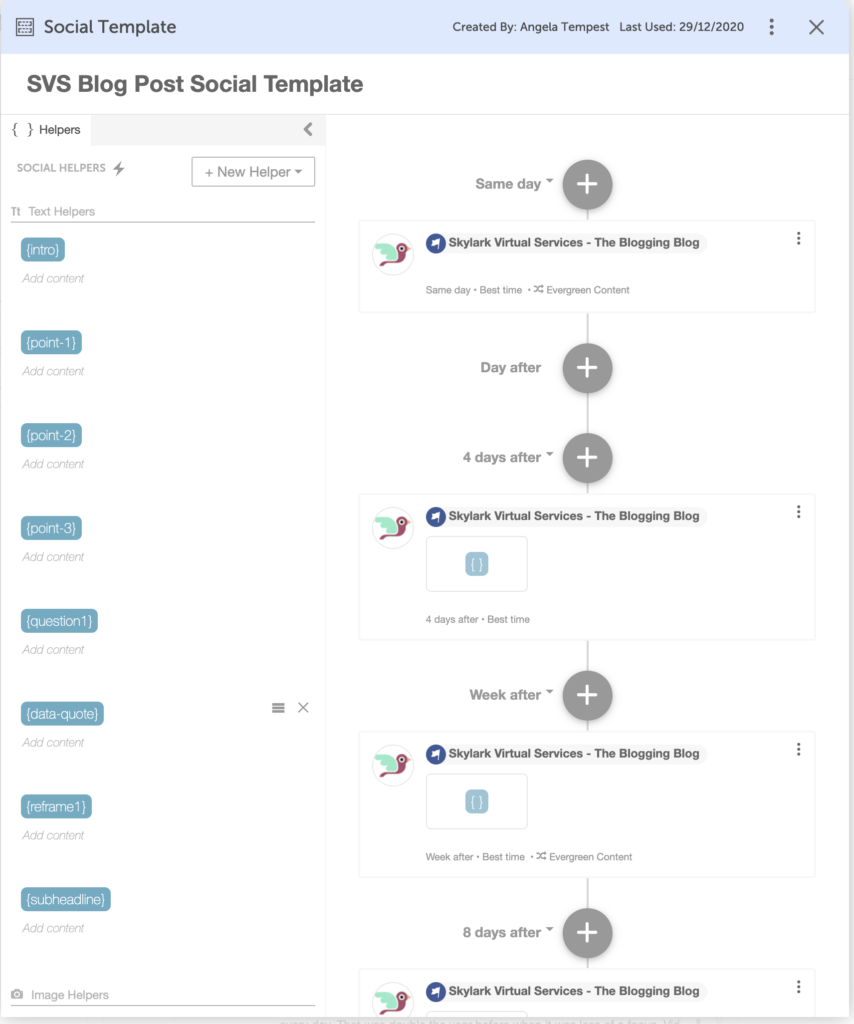
I typically have one template for each blog so it is easy to create the campaign and fill in the ‘helpers’ with content and images. Having the Google Doc viewable there in the project makes it even quicker to copy and paste sections into the social updates.
Currently, you can schedule to Facebook pages and groups, Twitter, Linked In and now Instagram directly as well as Pinterest. On the standard plan, you get 10 profiles so if you have a couple of groups, a page and a few other areas, you can automatically include them in the template to schedule content to.
Do you need both?
If you are looking to keep costs down and want to consider CoSchedule vs ClickUp to choose one or the other, you can think about the kind of tasks you want and how you work best. You definitely don’t need both but I have found that by separating the major work areas, the daily to-do list seems less overwhelming!
Both offer either a free trial or a free plan so you can test them out and see what works best. With any tool or app, you want something that makes being organised easier, not harder!


