

How to Get Organised with the Marketing Calendar by CoSchedule
You know what it’s like – there’s the outline for the blog post for next week and the finish of the email for Wednesday. You’ve promised to create a guest post for your blogger friend and you’ve neglected Facebook for nearly a fortnight.
As an Amazon Associate I earn from qualifying purchases and sometimes recommend products from other sellers at no extra cost you. For more details see my disclosure policy and privacy policy.
There’s a lot to do as a blogger and online business owner – this just scratches the surface! And if you are mad like me and have more than one blog or different business areas, then it gets really complex, real quick. Not that I mind but one thing is key – organisation!
That’s where the Marketing Calendar from CoSchedule comes in. My route to organisation, to tracking the projects, posts and tasks I need to do. Want to get to know it better?
What makes the Marketing Calendar different?
I’m a big fan of digital apps and tools to help with business and I’ve tried a lot of them. One of my favourites is ClickUp but something was missing from it that for a while, I couldn’t quite put my finger on.
I’d been a CoSchedule user way back when I first started and had stopped because they had gone in a team direction and I was a just-me business. I still essentially am but when I was doing some research, I realised CoSchedule had changed their product a lot and it was just what I needed.
For me, it is a marketing and project management tool while ClickUp is my task management. So one time jobs, repeat tasks and client work jobs go into ClickUp. Projects, blog posts, affiliate marketing, email marketing and all of that kind of thing go into the Marketing Calendar.
The features of the Marketing Calendar
I know, the important question is always ‘what does it do?’ so let’s take a look at the key features. Or a walkthrough guide of what’s inside, if you like.
The home page
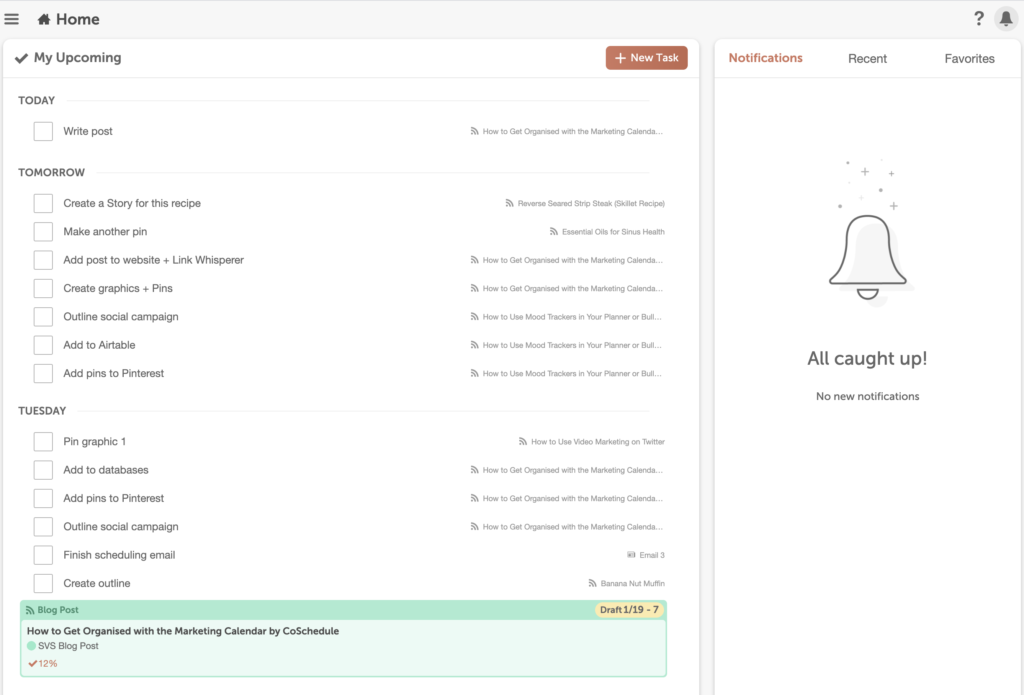
The home page is where you arrive once you have signed up for a CoSchedule account. Here you can see the tasks and projects for the next week as well as a number of notifications along the side.
You can use it is a simple to-do list and mark off things as they are done. Or simply click on the project to access it.
The calendar
Click the hamburger menu in the top left corner and the next option is the calendar. There are tons of ways you can set this up and multiple variations you can use. The default one includes everything – projects, tasks, reminders, social campaigns.
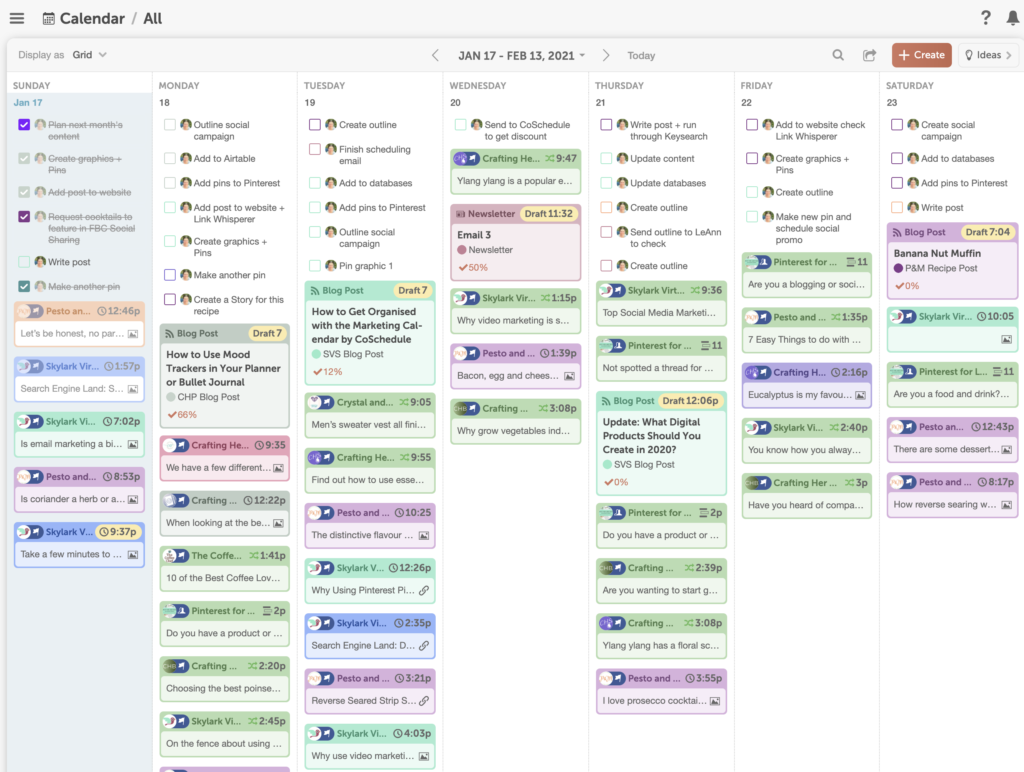
Then you can start fine-tuning the views to get what you need. One of my favourites is a simple editorial calendar view where I can see all the blog posts for the months without any tasks or social.

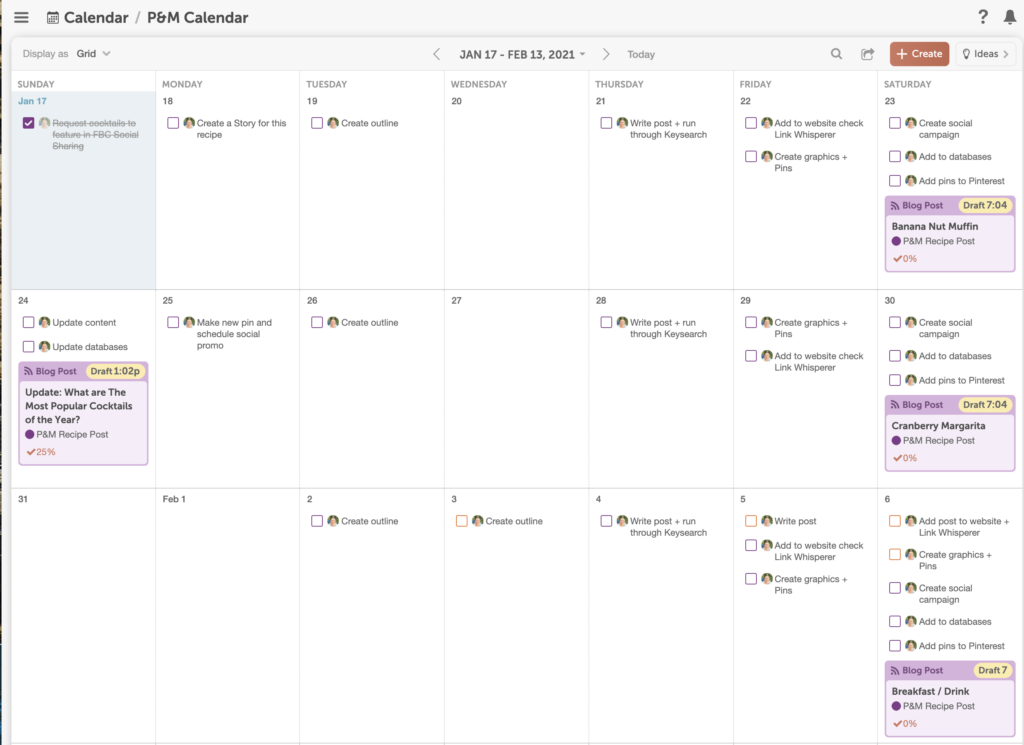
Or you can view everything under a particular tag. For me, each tag is either a different blog or an overarching project such as email marketing or affiliate marketing. In this view, I can all the posts and tasks for my food blog, Pesto & Margaritas.
Requeue
The third option on the menu on the home page is Requeue. This is a smart way to recycle content that you choose to your social media profiles. Or to set up a schedule or regular content.
For example, I use it to automate the weekly threads in my Facebook group. That means each week on the set days, the post goes out to give people the chance to promote their stuff.
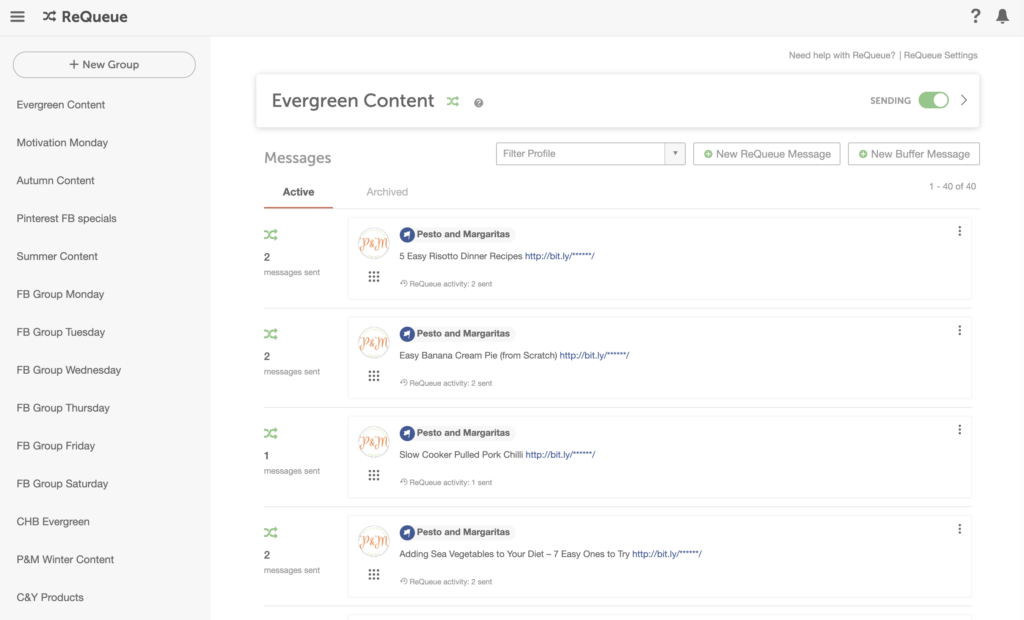
You can choose what goes into Requeueu, how long for or how many repeats and even create seasonal queues. There’s a dedicated view on the calendar for Requeue posts as well.
Analytics
While the analytics aren’t going to replace Google Analytics, there’s lots of information you can get in there around your social media content. Reports include:
- Social engagement
- Social campaigns
- Top messages
- Facebook report
- Twitter report
- LinkedIn report
- Instagram report
- Pinterest report
These reports depend on the social accounts you have associated with the account so if it isn’t connected, there won’t be any data.
In the social campaigns, you can choose a campaign and time frame and see how many messages, engagements and top message type. You can also compare with another campaign.
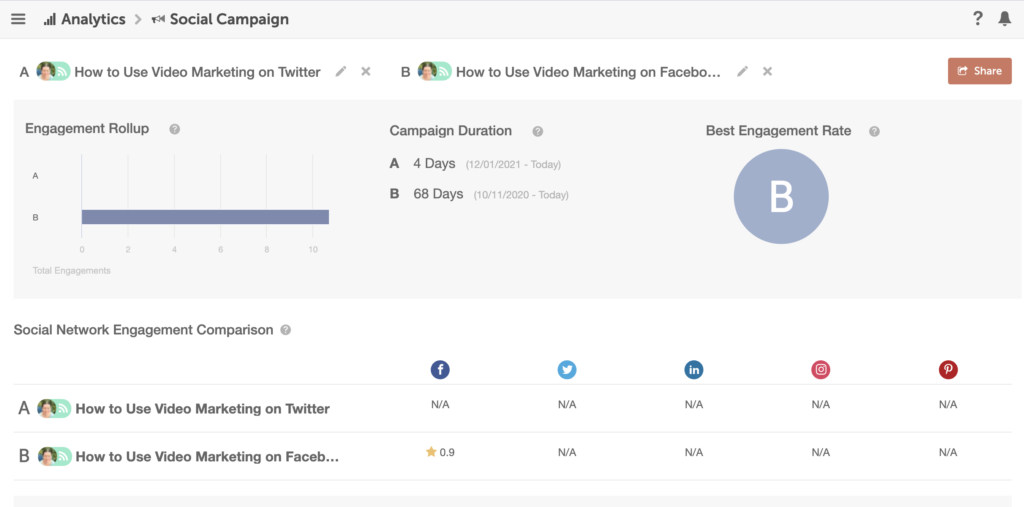
How to get organised with the calendar
You’ll probably find you spend the most time inside the calendar option with its many different views. This is where you can create projects and move them around.
Project types
The first thing to do when creating a project is decide on what type. There are a few default options within CoSchedule to help you section things off. You can find these in Settings > Project Types. Some examples include:
- WordPress (creates a draft in the connected WordPress site for the post)
- Blog post (doesn’t create a draft – ideal if you have more than one blog)
- Social campaign (separate to a blog post)
- Article
- Email marketing
- Idea (perfect for notes or ideas to keep track without actually being ready for a project)
- Website content
- Newsletter
- Event
- Promotion
- Video
- Audio
- Case study
- eBook
- eCourse
- Files
- Infographics
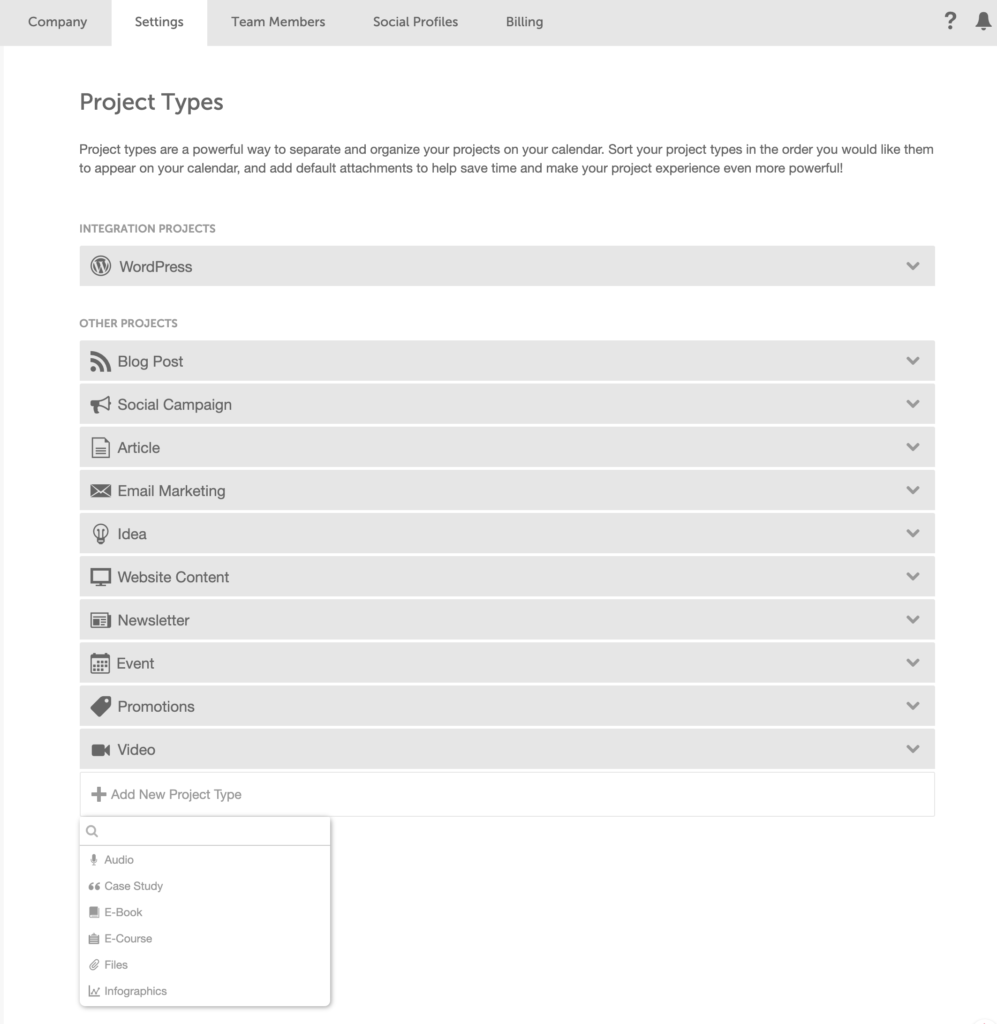
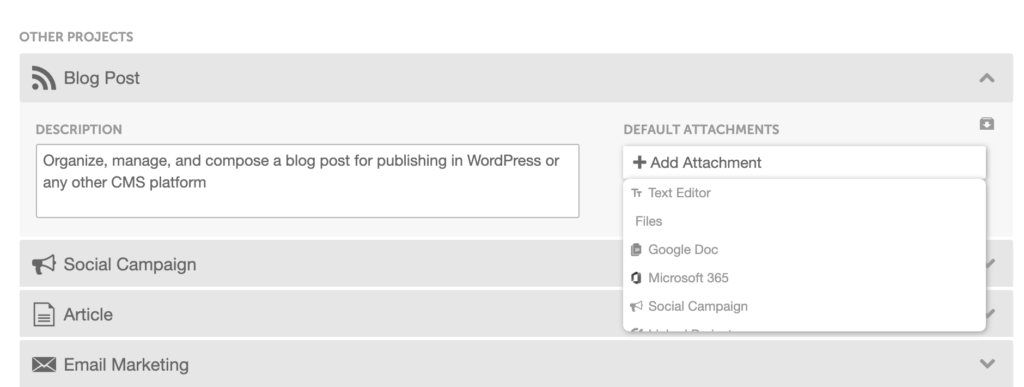
Each has its own icon so they look a little different in the calendar. You can toggle on as many as you want. Then you can choose a default description and any default attachments for the project type. These will be created in each new project you create of that type.
Task templates
Once you have set up the project types, you can then create task templates or use the ones provided. These save time on creating those to-do lists we all have for each type of project. Once you make the template, it will be applied from the date you show the project as starting.
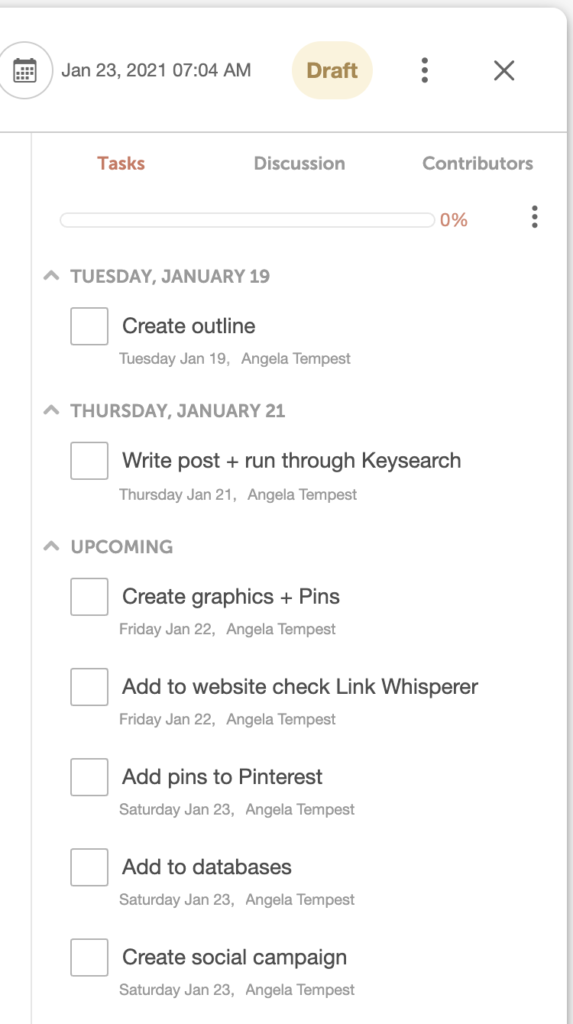
You can also add tasks, delete them from the list once the template is used or change the dates. The template just makes it easier to get started.
Integration with Google Drive
If you use Google Docs to write your blog posts, you can integrate this with your projects to access the file within the project. You can edit inline or open in Docs or the same for Sheets. This means you aren’t constantly looking for a file as you create a post.
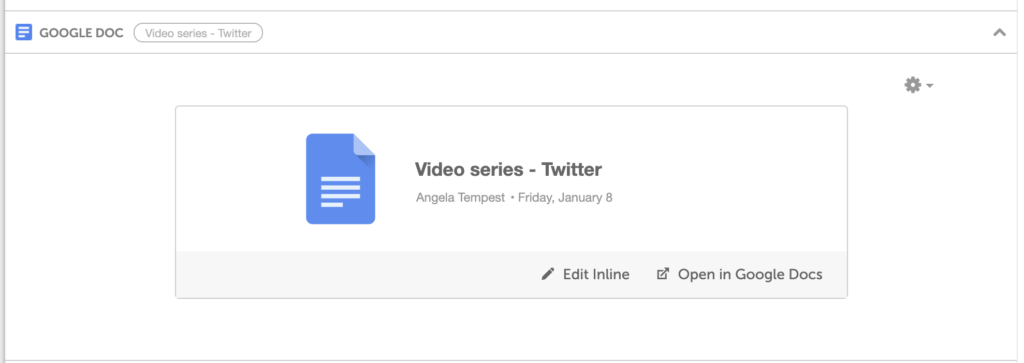
You can also download as a PDF, HTML or even convert to WordPress here if the file relates to your WordPress site.
Integration with WordPress
I’ve mentioned the WordPress integration but just to reconfirm. This is where you add the CoSchedule plugin to your website and access the calendar through it. When you create a post, it becomes a draft in WordPress.
Using it for social media
CoSchedule is called a Marketing Calendar because it does more than just organise your tasks. It is also a powerful social media marketing tool – and there’s templates. Have I mentioned I love templates?
Social campaigns
One way you can use the social media scheduler is with a social campaign or social messages. A campaign is a series of messages with a common link. A message is a single, standalone message. You can create both through the calendar.
Campaigns within a project
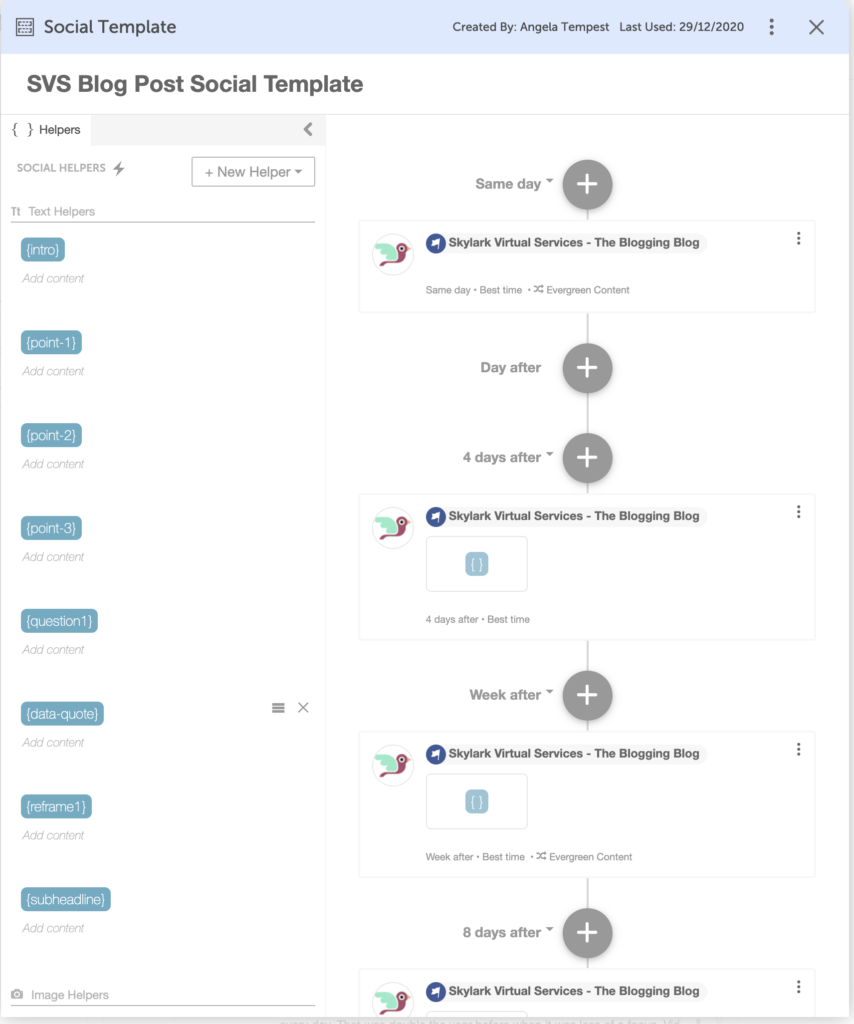
My favourite feature is the campaign within a project. Here you can set up a template to share content about the blog post across various platforms and simply add the information directly.
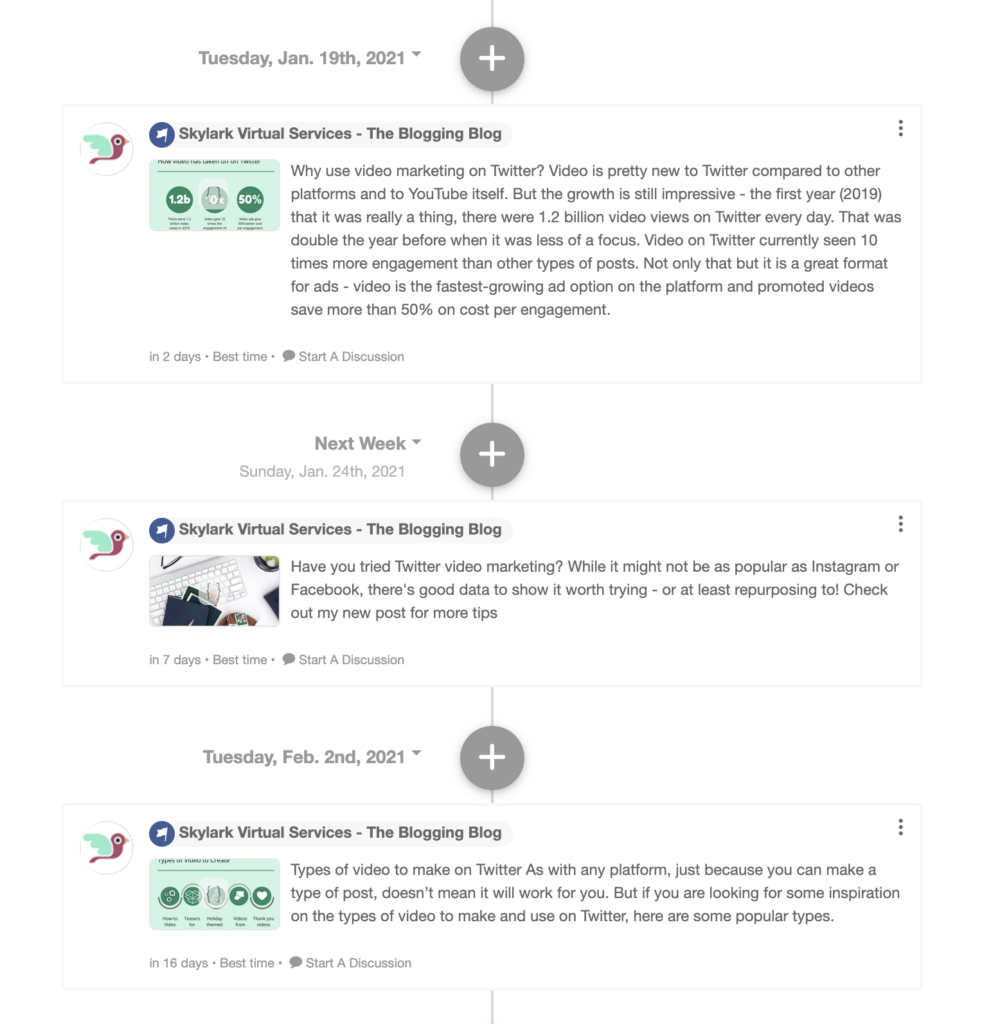
So you might want 6 Facebook updates in the 30 days after the post, 3 posts to Instagram, 4 Tweets and a Linkedin summary. You can create a campaign in the project to do this, add the updates and dates and CoSchedule will send it for you. You can also mark any of the updates to be Requeued if you want.
Social templates
Social templates create text, image and video ‘helpers’ that you complete for each project or have standard ones. These cut down the time it takes to schedule social media and mean you are being consistent.
You can set up your templates however you want and then apply them to a project. The helpers will be blank and you can add text, images, video along with the link for the post.
Extra features
That’s a lot, I know. But there are a couple of other features I wanted to mention before we finish to show you all the handy things the Marketing Calendar can do.
Ideas dump for different project types
Not sure if something is going to be a blog post or a video? Then you can use the ideas area to make a note of the idea and leave it there, without being a project or needing a date. Then when you know what and when, simply add the information and it will move to the calendar.
Recurring tasks
For me, I use CoSchedule for all of my content marketing jobs and that means there are recurring tasks with no particular blog or project. Content planning for the month is a prime example. The recurring task isn’t associated with a project but can be set to repeat every day, week or month as needed.
Coloured coded labels
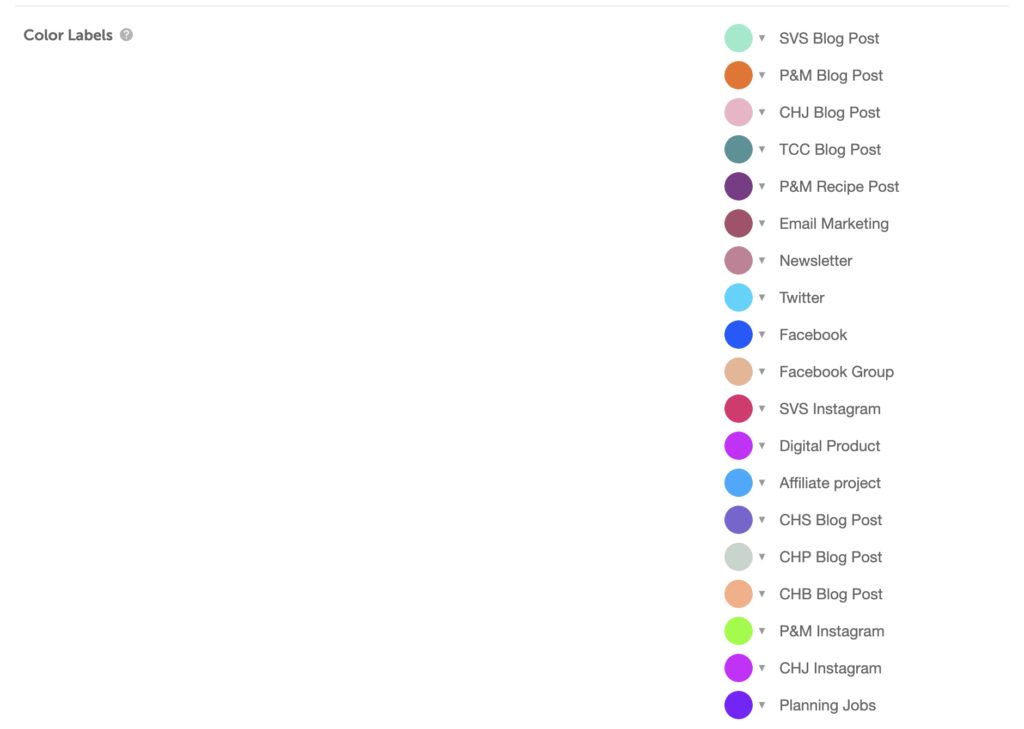
The easiest way to classify everything in the tool is with coloured labels. These are accessed in settings and can be default colours or your own picks. These are ideal for things like project areas such as email or affiliate marketing. Or for multiple blogs if you are like me. I used a branded colour for each because it looked nice!
A powerful tool in your toolbox
There’s no doubt that CoSchedule’s Marketing Calendar is a powerful tool in your digital toolbox. With its project management system and time-saving templates, it is worth looking at, even if you have one blog and little else. And if you are balancing a few projects, it is a must-have way to organise your content marketing!


