

Tailwind – The Perfect Tool to Make Pinning Simple
When you have a blog, there is a lot to do. In fact, sometimes it can seem a little overwhelming and that’s why tools are a crucial part of the job. When it comes to Pinterest, my favourite tool is Tailwind – the perfect tool to make pinning simple. But what is it and what can you use it for?
As an Amazon Associate I earn from qualifying purchases and sometimes recommend products from other sellers at no extra cost you. For more details see my disclosure policy and privacy policy.
What is Tailwind?
Let’s start at the beginning with an introduction to Tailwind for those of you who haven’t used it before.
First up, Tailwind is a Pinterest partner so that means any horror stories you hear about being penalised for using it doesn’t apply. Sure, Pinterest likes you to be on the site regularly and not automate everything. But if you go to Pinterest, spend some time and use Tailwind to spread the pins you find across the week, Pinterest is not going to get huffed with you.
Tailwind is a Pinterest scheduler primarily. The idea is that you select a load of pins, fill up your queue and the software send them to the chosen boards at the chosen time. This can save you a huge amount of time compared with manually pinning and ensure there is a steady stream of pins rather than a big pile then nothing.
You can also start using it for FREE on their new Forever Free plan too.
The Schedule
When you start with Tailwind, you set up a schedule. The site will suggest some time slots, or you can input your own. Once you have been using it for a while, it will start to suggest more based on the most successful times for your pins.
You can change the schedule and completely restart it after a while too. I used to pin around 30 pins a day now after using it for about a year so you can work up but even if you start with 5-10 a day, you are making good progress.
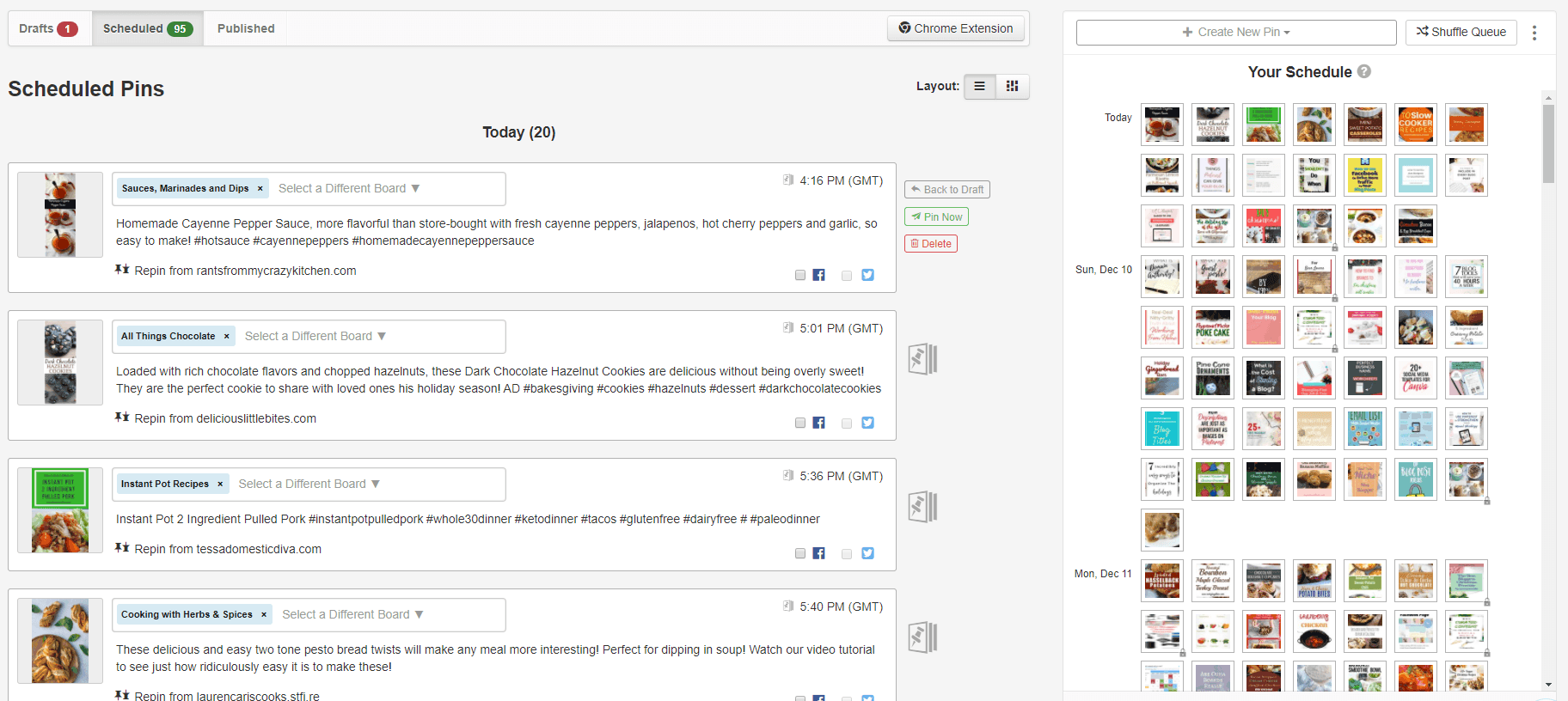
To add pins to the schedule, Tailwind has a handy Chrome extension. When you are on Pinterest you can hit it and it will bring up a box to then select which boards you want to send the pin to – you can select more than one and stipulate an interval between them to avoid seeming spammy.
You can also add a specific pin to the schedule when you see the blue Tailwind logo on a pin and again the box will appear to show what board it should go to.
Board Lists
Another useful part of Tailwind is the board lists. This is where you can quickly organise your boards into lists to add a pin to the schedule for all of these boards with a click.
I’ll use my other blog as an example – one list is for my social media boards so each board for Facebook, Twitter and co are on one list. If I write a post just about social media in general, I can select the board list and it will be pinned to all of them at my chosen interval.

You can also use it for group boards. Say you have boards that are for social media topics only – that’s a list. Or group boards for mom blogging topics – there’s another one. Anything that can be categorised together can go onto a board list for easy access.
Communities (formerly Tribes)
Communities is a growing feature with Tailwind that was originally known as Tribes. You get access to the basic level of Tribes with your subscription and if you want to use it more than the free level, they have ‘Power Ups’ that let you add more boards and more repins to your account.
But what are Communities? They are a bit like group boards but easier to use. All content in the Tribe appears under the Community section and you can select between different Communities you are a member of easily in the special section.
You can add a pin to a board through it or to more than one. You can also add your own pins – although always watch the Community rules as each are set up by the owner. You also need to ensure a pin is added to Pinterest before adding it to Communities.
Communities Stats
There are three sets of figures that you should keep a note of about your Communities pins:
- How many times the Community has repinned your pins
- The number of saves you have received from those repins
- The potential reach you got from those repins
The first two are the most important to me – if you don’t get repins, you won’t get saves or reach anyone. And this might mean either your pins need a little work, or the Community isn’t the right fit for your content.
I keep a note of my stats on an Airtable sheet and am going to use these to make decisions going forward about which to keep and which to leave.
Community Chat
I haven’t used this feature myself, but you can also chat with others through Community to build that sense of being part of a real community. To talk to someone in the Community, go to the Members section and click ‘chat’ then add your message. They will get a notification and can respond. You will see a red notification if you have any messages.
Smart Loop
The other big feature within Tailwind is called Smart Loop. If you’ve been around a while and remember BoardBooster, it is a bit like that only smarter and made with Pinterest.
Smart Loop takes the pins you add to it and sends them out to the boards you choose on a smart setting. You can set rules within it to stop pins going out too often and the Smart Guide feature also warns you if you risk going against Pinterest best practices. Right now, that means something like 5 months between the same pin going to the same board.
I tend to use it for seasonal content as there are two types of Loop – seasonal and evergreen. With seasonal, you can pick dates for the Loop to start and finish and the app will automatically send the pins out to the boards set during this date.
2021 update – new accounts don’t seem to have access to Smart Loop but existing ones can still continue to use the feature.
Tailwind Create
The latest feature added to Tailwind is called Create and it is a clever way to make multiple pins for a post quickly.
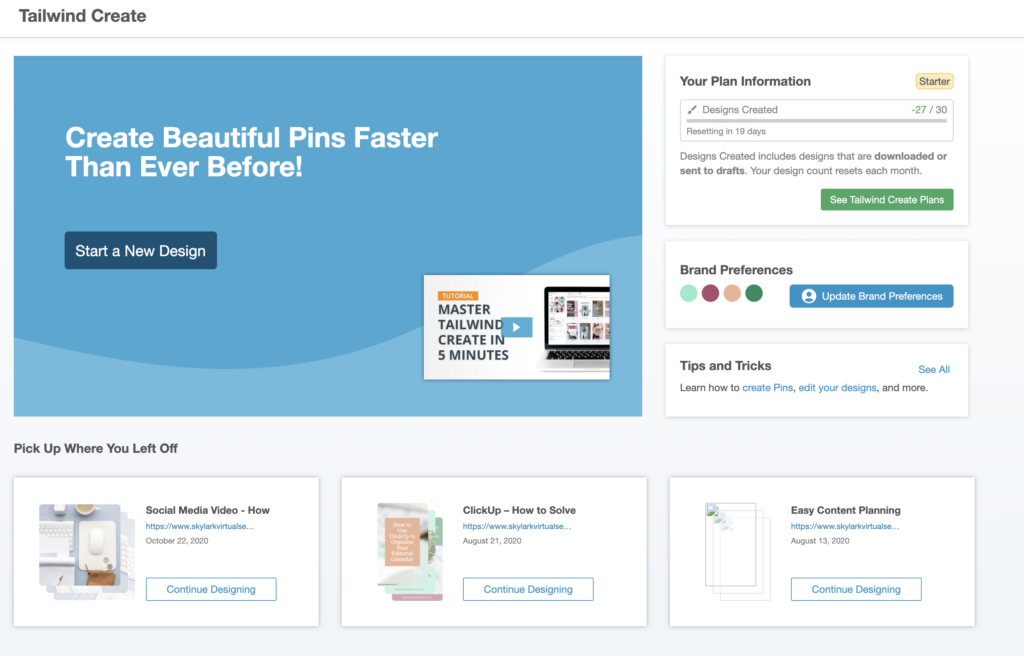
While it isn’t going to replace Canva for me, it is a great way if you want to make a few pins for one post quickly. You add a few basic things like photos, a headline and a URL and the software suggests a load of pin designs.
Then you can select the ones you like and edit them. You can change headlines, make things bigger or smaller, move things or add some elements. Once you are happy, you can either download it or add it straight to your pin queue.
Analytics
Finally, we come to Analytics. How much you can access does depend on the level of subscription you have but even the basic level offers a number of useful features.
Monitor your domain
This gives you three bits of data – pins, pinners and potential impressions from the last seven days. You can see what are your most popular images for the last week as well as average figures for the three categories.
Organic activity
This is where you can see your latest pins and can repin them if there’s an opportunity for it.
There are also sections for Industry Trends and Referral Traffic for higher plans.
Profile performance
Under the second, Track Your Brand menu option is the profile performance where you can see how you profile is growing. You can see:
- Followers and how many added in 7 days
- Pins and how many added in 7 days
- Repins and how many repinned in 7 days
- Comments
You can also see your virality score, engagement score and engagement rate.
Virality score is how much your pins are being repined while engagement score is how engaged your audience is with your pin content.
Engagement rate is how many pins have at least one repin versus no repins and helps you see how well your content resonated with your audience. An engagement rate of 100% would mean every pin had at least one repin.
Board Insights
For me, this is the most useful of the analytics tools. Here you can see information about your boards, secret boards and most importantly, group boards. This includes pins in total and in the last weeks, followers, repins, virality and engagement score.
I have an Airtable sheet with all my group boards in and I record how many total pins, how many added in a week and the virality score. That way I can spot boards with little activity or ones with very low virality score.
Group boards tend to have a lower virality score than normal boards but even so, you can see the ones that are excessively low and consider if you want to stay as a member.

Plans
As of 2021, Tailwind have restructured all of their plans and incorporated both Instagram and Pinterest scheduling into a single account. This makes it easier to send content to both platforms and manage your social media in a single place.
They have also added a Forever Free plan that lets you use their features in a basic way without paying anything.

A great Pinterest helper
I can definitely recommend Tailwind for anyone who wants to seriously use Pinterest but wants to make the most of their time. The range of features on the Plus plan is ideal for bloggers and for small businesses and can save significant time.
The added benefits of Communities are also worth considering the upgrade too. If you want to see more about the typical results of Tailwind users, they’ve also put together some handy information as well – there’s nothing better than some good data to help you make a decision!


