

How to Use Airtable for Social Media
Airtable has long been one of my three must-have tools and is my database of known information. From what blog posts I’ve published and when to keyword research, stock inventory for jewellery business and more, everything is stored on Airtable.
As an Amazon Associate I earn from qualifying purchases and sometimes recommend products from other sellers at no extra cost you. For more details see my disclosure policy and privacy policy.
But there’s a lot more that you can do with Airtable than just collect data. One example is to look at how to use Airtable for social media marketing. Ready to check it out?
What is a social media calendar?
A social media calendar is like a content calendar but focused on the social media platform or platforms that you are posting on. The idea is that the important content, the copy and graphic assets, are stored in it along with things like hashtags where relevant, accounts to mention and the time and date of publishing.
If you have a team, it can include the content owner or who has to do what and also a status field, usually the progress of the content to being posted.
Of course, it can go further than this and include things like campaigns or even business objects and link posts to these as well as studying how they do after publishing with analytics. This helps with judging what’s working and what to do going forward.
How do I create a social media content calendar?
You can use lots of different tools to create your social media calendar but Airtable definitely does a great job with it. That’s because there’s even a free template to use to get started and to make the whole process easier.
Before you dive into adding content to the template, there are three steps to take.
Step 1 – Consider your social media plan/strategy
To start with think about the overall plan or strategy behind the content you are creating:
- What is your topic?
- What is your goal?
- What social media accounts are you posting on?
- How often should you post on each platform?
- Are some platforms that better reach some audiences more than others?
- What type of content is appropriate for each target audience?
- When is your audience online?
- When do you plan on publishing your update or post?
- What type of post is it – text, link, GIF, video, poll or something else?
- What sort of assets do you need (text, images, video)?
Step 2 – View and analyze your results
Once you have started to plan and post your content, the next step is to view and analyse the results to see what’s working and what needs improvement.
Area to consider could include:
- What worked well and why – was it the time published, the type of post, the content, how it was done?
- Could you repurpose top posts to other platforms?
- What insights can you get from the post that will help with future content?
Step 3 – Organize your ideas and backlog
The other step is to start a habit of coming up with ideas and recording them so that you have a ready supply of them when it comes to time to post. Grab assets and keep them with ideas and then simply move them into place on the calendar.
Try to get a bit further ahead each time you use your calendar so that you aren’t constantly feeling behind or chasing content – none of us make our best stuff under that kind of pressure!
The Airtable Social Media Calendar template in action
Once you have done some planning, it is time to dive into the free template and start planning some content. Head over to Airtable, into templates and search for ‘Social Media Calendar’ then click to use the template and add it to one of your workspaces.
All of these features use the free plan with Airtable so there’s no need to upgrade unless you want to add more.
Scheduling content
The first default page is where you will add the content that needs to be scheduled. There are some default examples in there to help you get started.

- Post topic – this is if you use some kind of category system for your posts
- Date and time – this is when the post will go live
- Status – you can change these but the default includes things like in progress, planning and live
- Channels – personliase this for the social media platforms you use
- Copy – the text of the caption
- Image – the image for the post
- Social media owner – optional but ideal if you work with a team so you can allocate the task to someone and it will show in their dedicated view plus they will get a notification about it
- Type of post – this can be things like if the post is evergreen or a campaign or even what the type of post such as a link or video
You can easily change the details of these columns or add more to suit your workflow. But the basic template allows you to quickly get started.
There’s also a calendar view so you can see your posts with the monthly, 2 weeks, 1 week or even 3 days or 1 day views.

Results
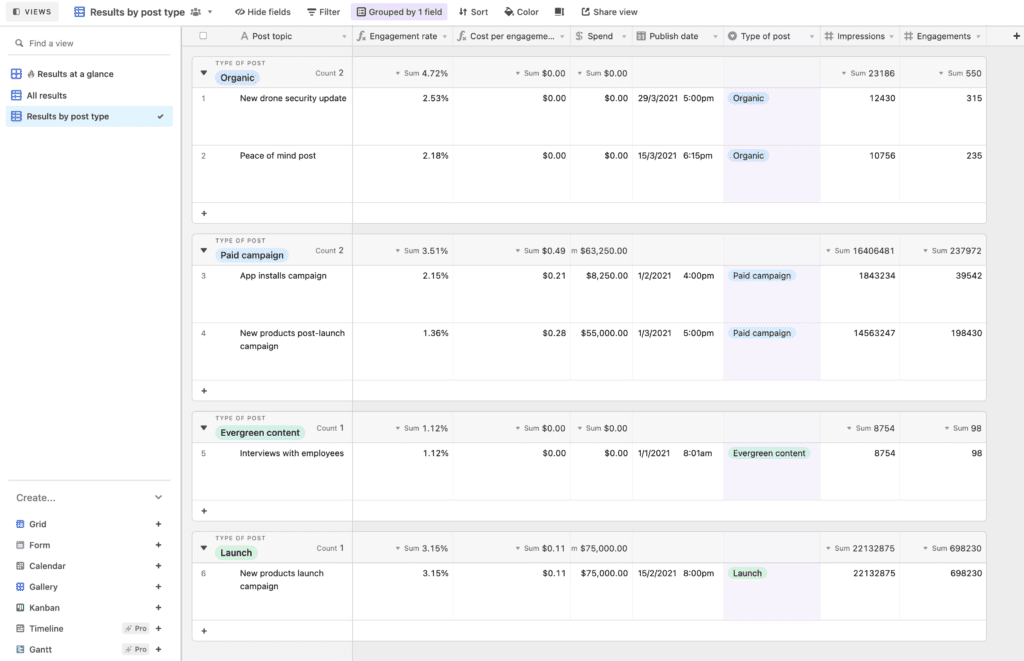
The second page is the results and the default view is a Kanban board with two different views in the table style for results by post type and all posts.
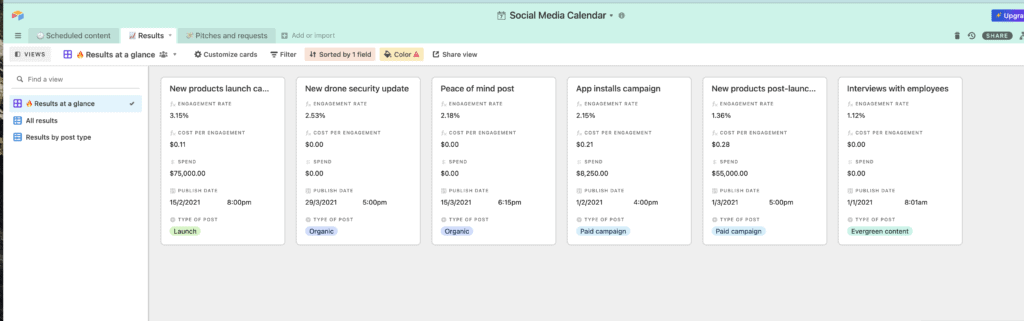
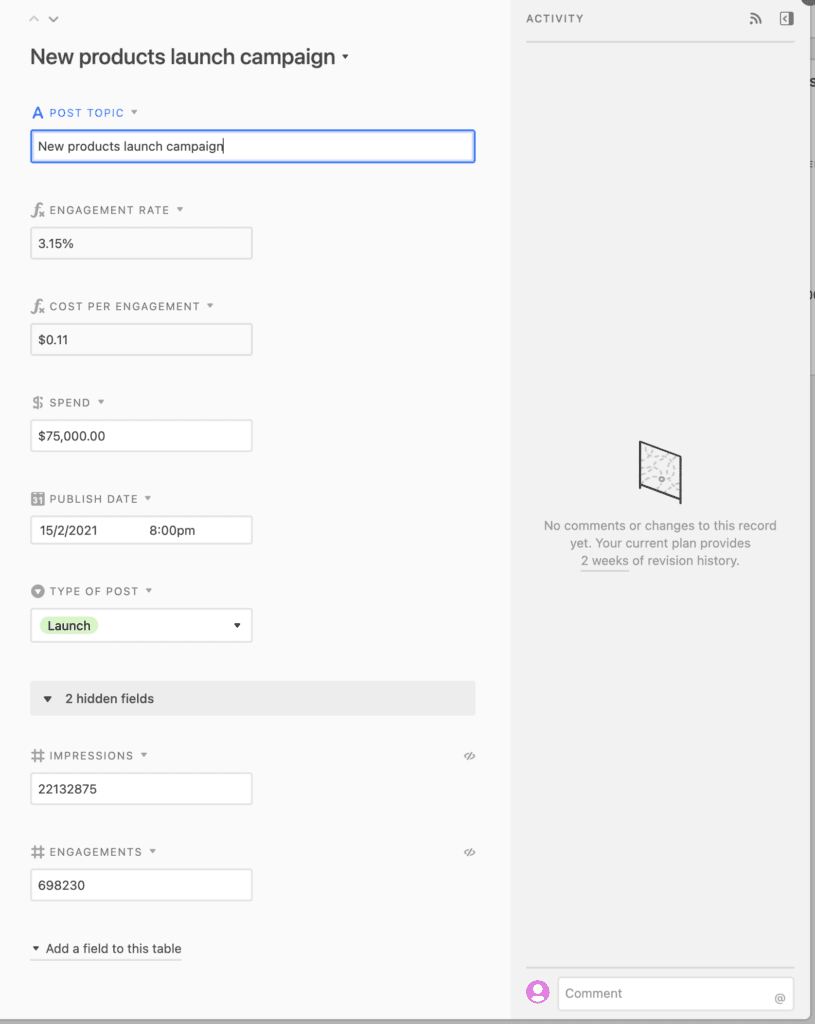
Within the record, you can keep track of the metrics that matter includes things like engagement rate, spend and cost per click if you paid for the post as an ad as well as what the post was about.
The results by post type sorts by the post type and allows you to compare the different posts within a type to see what did better.
Pitches and requests
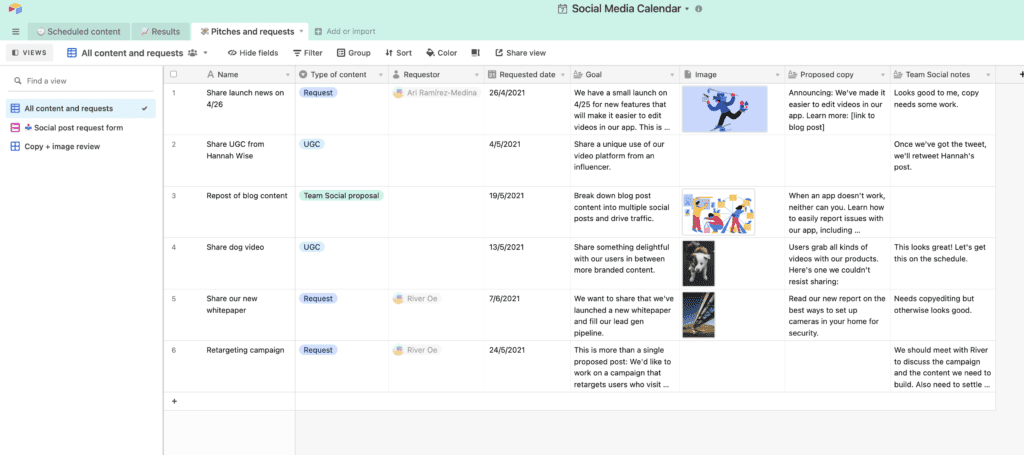
The third page is useful if you are pitching for sponsored posts, ad campaigns or even user generated content want to track these alongside your social media calendar. The format is similar to the main calendar but allows for a goal for the post, tracking notes on what happens and results.
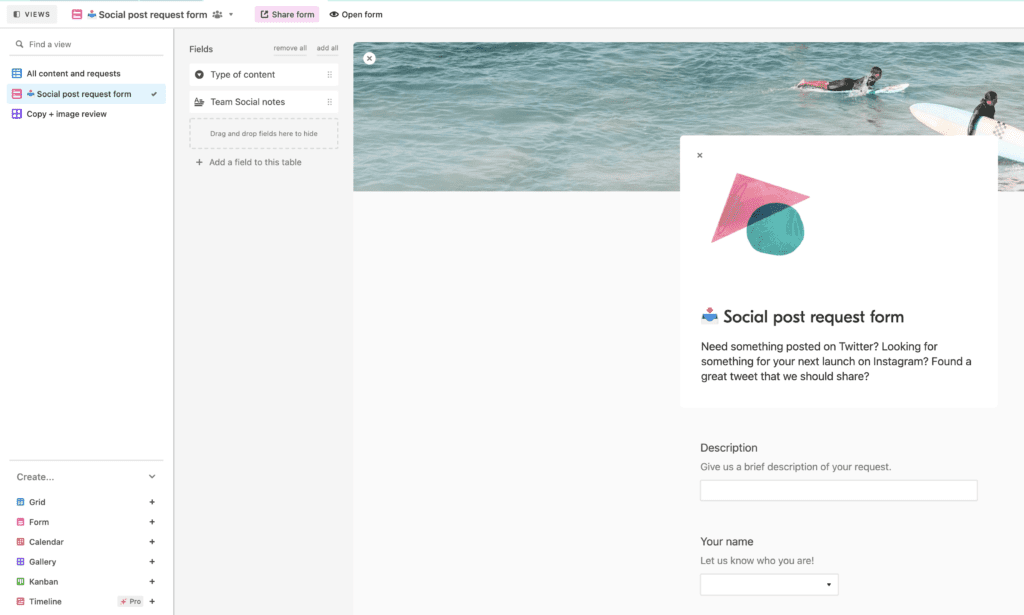
There’s also a form that’s great if you have a team and allows different parts of it to request different social posts. Or you could use it to collect potential details for sponsored posts or collaborations.
The final section is for copy and image review and if there’s more than one person involved with social media marketing, this is a great place to make sure everything gets signed off before it is posted.

Control your social media posts
Having more control of social media content is easy with an Airtable base and their social content creation template means you can quickly get started. Similar to an editorial calendar, it means you can see what to post and when and allows online business owners to make social media marketing more effective and less work.


